Create an org chart
Choose a setup method
Choose the option that best matches where you are starting.
- Walkthrough: Learn the main controls using a demo table and chart.
- Configuration wizard: Let the add-in analyze an existing table and recommend fields.
- Manual configuration: Choose the table, identifiers, and displayed fields yourself for complete control.
Configure manually
Use manual configuration when your Excel table is ready and you want to choose each setting.
- Open Configuration and select the source table.
- Choose different columns for the employee identifier and manager identifier. Their value types must match.
- Select the fields to show in each chart box.
- Open Appearance to reorder and format those fields.
- Return to Org chart to view the completed chart.
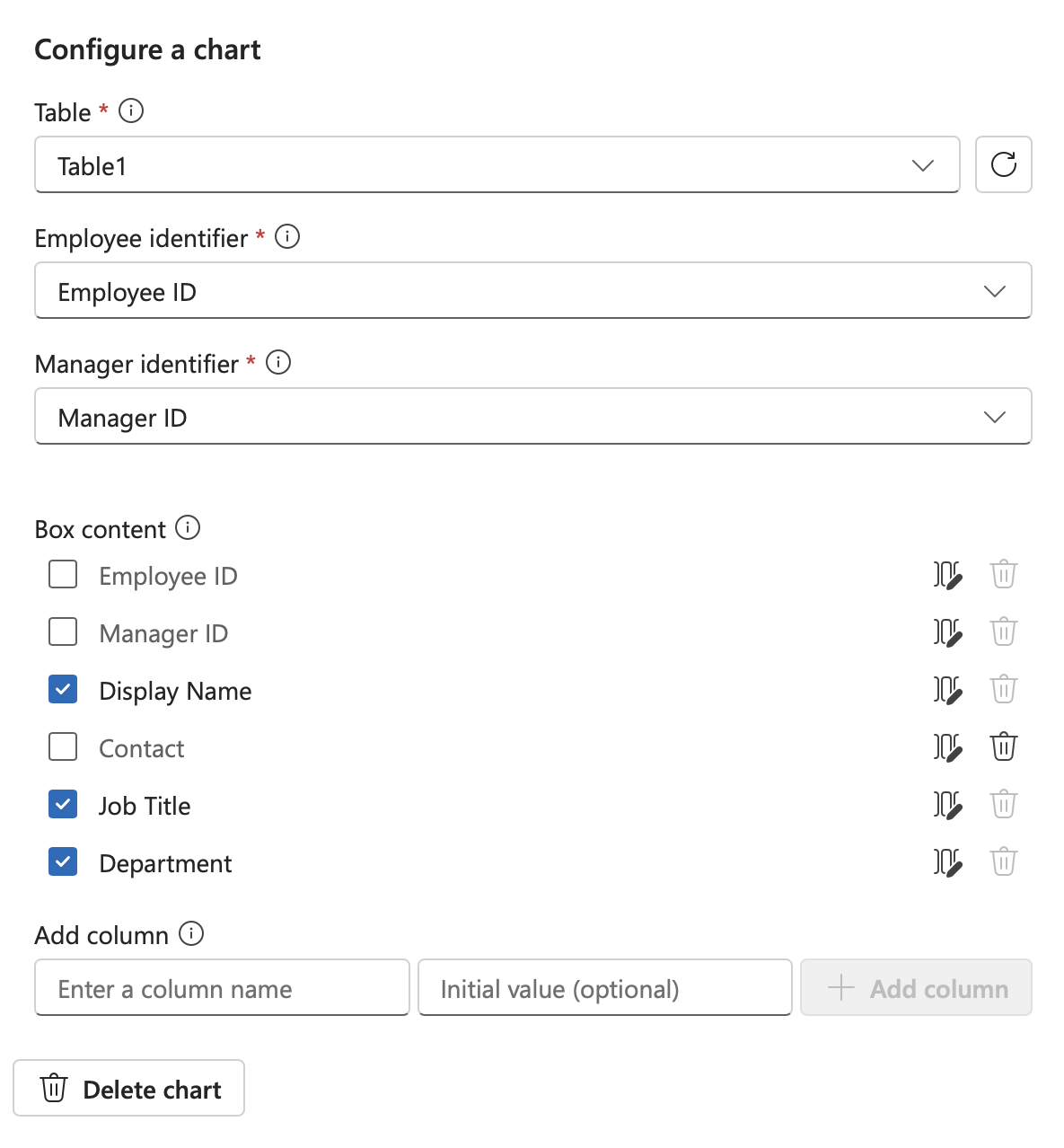
The employee and manager identifiers must use different columns, but their values must use the same format, such as employee numbers or work email addresses.
Share your chart
Open the Share menu from the navigation bar, then choose how to use the current chart.
- Use Add to worksheet to insert the chart into the current workbook.
- Use Save as image to save a PNG for presentations and documents.
- In Excel for Windows, use Copy to clipboard to paste the chart into another application.