Navigate a chart
Search the chart
Search uses the fields displayed in chart boxes, so you can look for a name, role, department, or another displayed value.
- Enter a search term in the chart toolbar.
- Select a result to center and highlight that person in the chart.
- Use Filter table to these results when you want Excel to show only the matching rows.
View person information
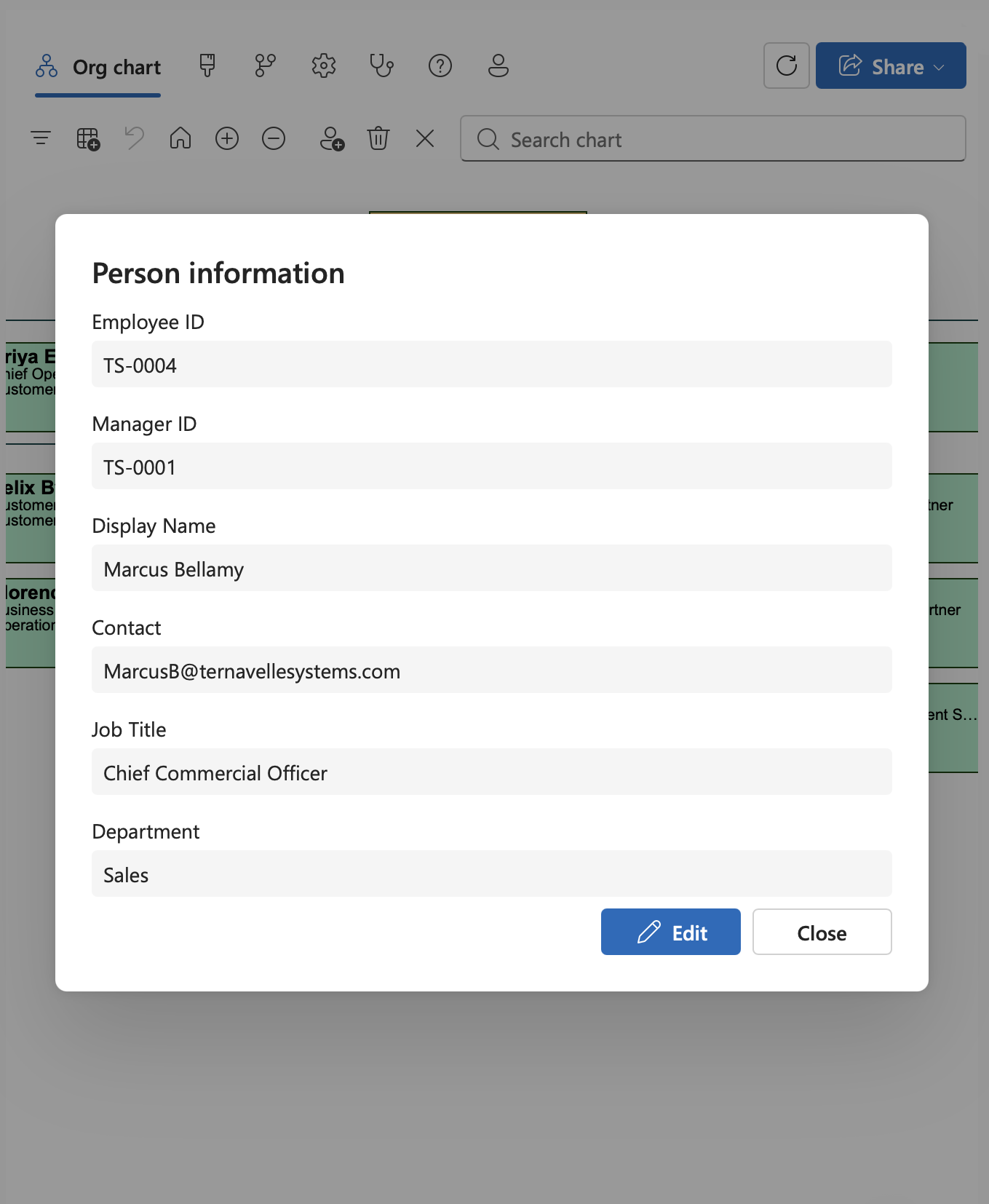
Select a person's chart box to view the information taken from their row in the Excel table. If you need to make a change, select Edit to update their details.
Move through the hierarchy
- Use Top of chart to return to the highest position in the hierarchy.
- Use the navigation control on a chart box to focus on that branch of the organization.
- Use Show a level or Hide a level to control how much of the hierarchy is visible.
Keep Excel in sync
Filter the source table when you want to work in Excel with only the people relevant to your current task.
- Use Filter table to these results to show only people returned by a search.
- Use Filter table to chart to show only the people currently visible in the chart.
- Select the same control again when you are ready to clear that filter.